
Requirements
Admin access to an Okta organization
Supported Features
Service Provider (SP)-Initiated Authentication (SSO) Flow - This authentication flow occurs when the user attempts to log in to the application from Nudge Security.
Identity Provider (IDP)-Initiated Authentication (SSO) Flow - This authentication flow occurs when the user attempts to log in to Nudge Security from Okta.
Configuration Steps
In Okta, Go to Applications → Browse App Catalog, and search and add Nudge Security.
Assign the users or groups that should be able to log into Nudge Security.
Go to the Nudge Security app → Sign On tab. Note of the Client ID and Client Secret.
Contact Nudge Security help@nugdesecurity.com to request an Okta SSO setup. Note: Nudge Security will respond to request the following information through a secure connection. Please do not send this information in your support ticket or email.
Okta Domain (looks like acme.okta.com)
Client ID
Client Secret
Nudge Security support will handle your request and will follow up with you as soon as the integration is configured.
Logging into Nudge Security Using Okta
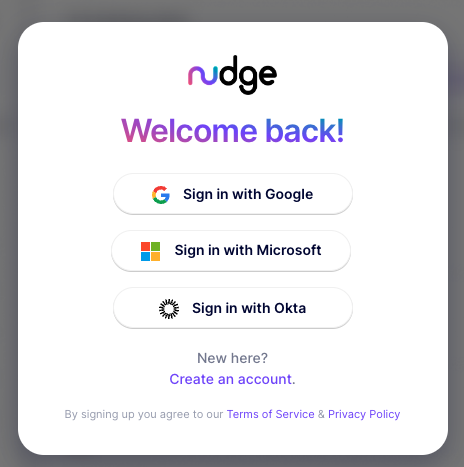
When your Okta SSO setup is complete, you can log into Nudge Security as usual:
Click “Sign in with Okta.”
Enter your Okta domain.
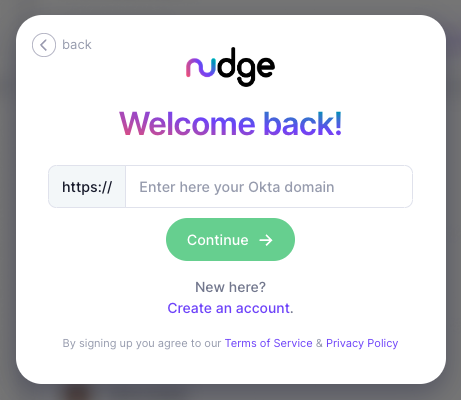
Once your Okta domain has been successfully verified, click "Continue" to log in.